|
|
 发表于 2026-3-26 18:24:24
|
显示全部楼层
发表于 2026-3-26 18:24:24
|
显示全部楼层
Hello, please try troubleshooting as follows:
1. Make sure the USB cable is connected directly to a USB port on your computer; do not use a docking station or hub as an intermediary.
2. If it is connected directly to the computer, try using a different USB port. (For desktop computers, connect to a USB port on the motherboard at the back of the case.)
3. If you are using macOS, try switching between USB-A and USB-C ports to rule out unstable connections.
4. Try using a different USB cable to rule out a cable malfunction.
5. Restart your computer and try again.
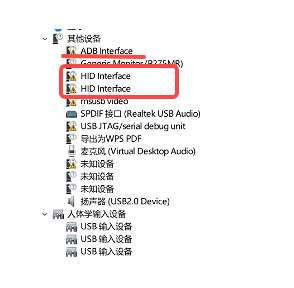
6. For Windows computers, right-click “This PC” > ‘Manage’ to open Device Manager. Check if there is an exclamation mark next to the “HID Interface” entry as shown in the image.
If so, follow these two steps:
6.1. Right-click the “HID Interface” entry — select “Update Driver” — choose “Browse my computer for driver software” — navigate to the root directory of your system drive (usually Drive C) to search for the driver. Follow the on-screen instructions to install it.
After successful installation, check if the exclamation mark is still present. If it is gone, the driver has been installed successfully. At this point, verify that the device is connected.
6.2. Right-click the “HID Interface” entry, select “Uninstall device” from the dropdown menu, unplug the device’s USB cable, then plug it back in. Wait for the device to restart, and check if the exclamation mark is still present.
If it is not, the driver installation was successful; at this point, verify that the device is connected.
|
|
 English
 简体中文
简体中文 繁體中文
繁體中文 한국 사람
한국 사람 日本語
日本語 Deutsch
 русский
 بالعربية
 TÜRKÇE
 português
 คนไทย
คนไทย french

 发表于 2026-3-26 08:33:49
